
Live Document
Note that this is a generic live document for all our UE4and5 products, most of our products share the same functions. This is an evolving and constantly updating document, it may change over time as we update new products.
Version:
Previous product versions are kept online for customers using old engine versions of UE4. No updates will be made below these versions. For example, all our products will support 4.24 and above.
Screenshots:
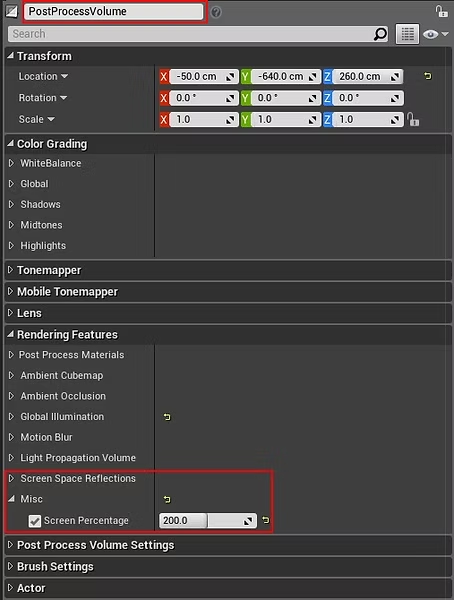
Filmed in 4K using cinematic processing quality, SSGI, and 200% screen percentage. Depending on the UE4 version, the lighting, exposure may vary, there may be minor image changes to the screenshots and project after updates, also to be of the highest visual quality for cinematic and visual fidelity. developed. You may notice slight drops in FPS when playing in the first person on stage. Please read below on how to fix these issues.
Note that all individual assets themselves are still crafted at playability and quality.
Performance:
Depending on many different factors, these are; Hardware, map size, asset density, lighting/display setting, screen resolution may vary depending on the GPU driver version and even the programs running in the background. It is always possible to get a better FPS by changing the light performances by changing the Lod setting.
Naming Conventions
| Prefix | Meaning |
|---|---|
| SM_ | Static Mesh |
| SK_ | Skeletal Mesh |
| M_ | Material |
| MI_ | Material Instance |
| MF_ | Material Function |
| T_ | Texture |
| Mask_ | Mask Texture |
| B_ / D_ | BaseColor Texture |
| ORM / RMO | Roughness, Metallic, Ambient Occlusion |
| ORH | Occlusion, Roughness, Height |
| O_ | Opacity Texture |
| H_ | Height Texture |
| N_ | Normal Texture |
Technical Standards
Screen Percentage
This was set to 400 by error on some second releases. Please turn it back to 100 under the Post Process settings if you encounter performance issues.
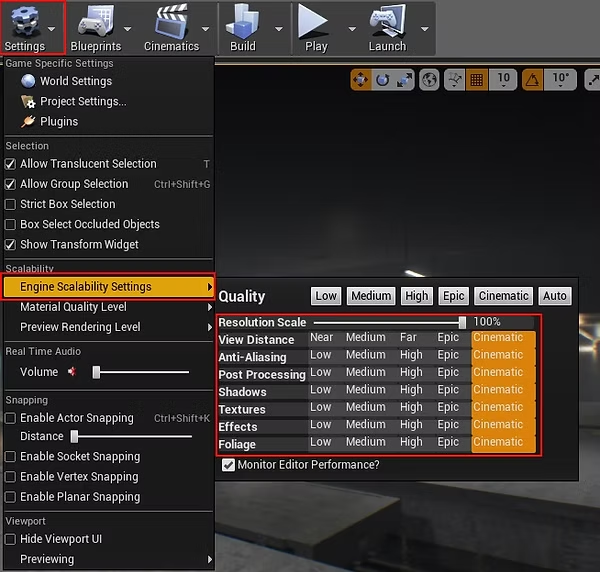
Project Quality
The quality of our demo scenes is "Cinematic" to showcase realistic fidelity. However, this may impact FPS. Feel free to adjust settings; we recommend "Epic" for standard development.
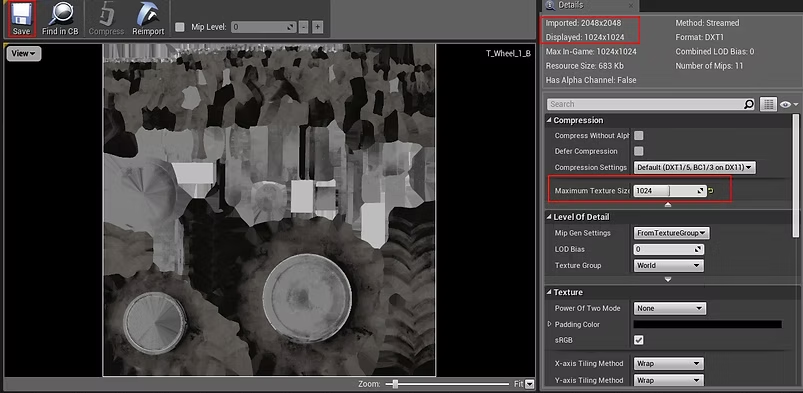
Texture Compression & Sizes
Recommended settings are 2048x2048. For mobile games, you can downscale to 256x256 or 512x512. Most textures can be restored to higher resolutions in the texture options if needed.
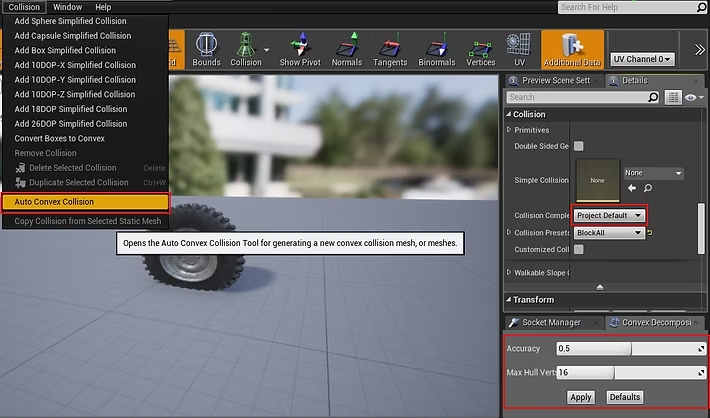
Collision
Many of our packages feature custom collisions for better performance. Default UE4 auto-collision is often inefficient. If you add new meshes, we recommend using "Auto Convex Collision".
Performance
FPS varies based on Hardware, map size, and resolution. You can always improve performance by adjusting LOD settings or light complexity. On a GTX 1080, our environments typically run at 120+ FPS.
Screenshots & Visuals
All screenshots are filmed in 4K using cinematic processing, SSGI, and 200% screen percentage. Depending on the engine version and updates, minor visual changes may occur. Assets are crafted for both visual fidelity and playability.
Support & Community
Join our community for developer support, bug reports, and exclusive glimpses of upcoming products.
FAQ
DISCLAIMER: These are general technical notes for all TrisGames products. Screenshots might use different lighting or screen percentages. Minimum supported UE version is 4.24.